You’ve taken the perfect photo or designed the perfect graphic. Now you need to put it on the web — but the file is 4MB. Upload it as-is, and your page takes forever to load. Compress it too aggressively, and it looks like it was faxed in 1995.
There’s a sweet spot. This guide shows you exactly how to compress JPEG, PNG, and WebP images to the smallest possible file size with no visible quality loss — directly in your browser, without uploading files to any server.
Understanding Image Compression
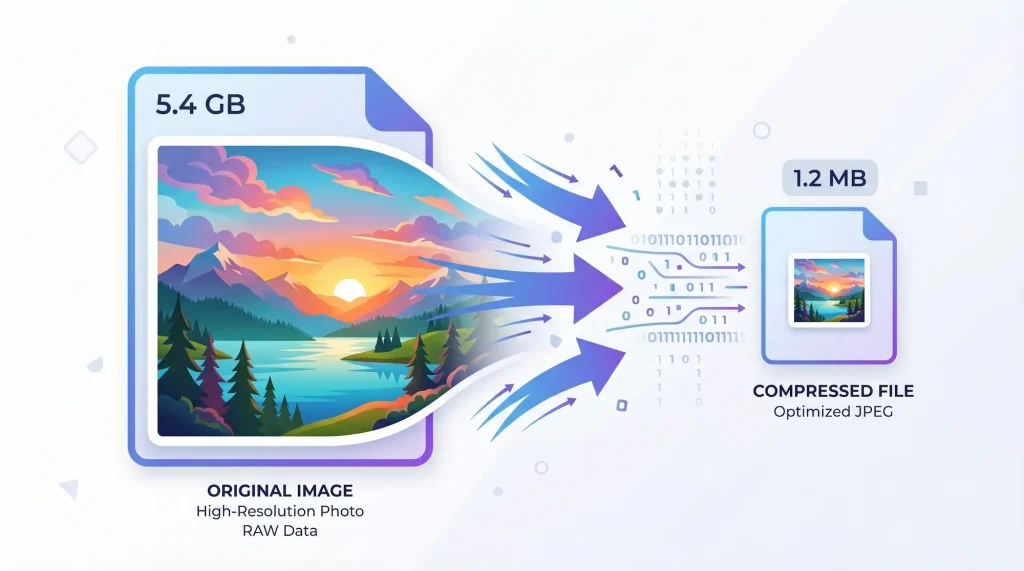
Before jumping into tools and techniques, let’s understand what’s actually happening when you compress an image.
Lossy vs. Lossless Compression
There are two fundamentally different approaches to compression:
Lossy compression permanently removes some image data. The algorithm analyzes the image and discards information that the human eye is least likely to notice — subtle color gradients, fine texture details, and high-frequency patterns. JPEG is the most common lossy format.
The key insight: our eyes are much less sensitive to certain changes than we think. A well-tuned lossy compression can reduce file size by 70–80% while looking identical to the original on screen.
Lossless compression preserves every single pixel. The algorithm finds more efficient ways to encode the same data — like replacing “red red red red red” with “5×red.” Nothing is discarded, so the decompressed image is pixel-for-pixel identical to the original. PNG uses lossless compression.
The tradeoff: lossless compression produces larger files than lossy, but the quality is mathematically perfect.
Which Should You Use?
Here’s a simple decision framework:
- Photographs → Lossy (JPEG or WebP lossy). Photos have so much detail that lossy compression is nearly invisible, and the file size savings are enormous.
- Graphics with text, logos, or sharp edges → Lossless (PNG or WebP lossless). These have flat colors and precise lines where lossy artifacts would be noticeable.
- Screenshots → Lossless (PNG). Text in screenshots becomes blurry with lossy compression.
- Icons and simple graphics → SVG when possible, PNG when not.
How JPEG Compression Works
JPEG is the most widely used image format on the web, and understanding its compression helps you choose the right settings.
The Quality Scale
JPEG compression is controlled by a “quality” setting, typically ranging from 0 (maximum compression, terrible quality) to 100 (minimum compression, best quality).
But here’s what most people don’t realize: the relationship between quality setting and actual visual quality isn’t linear.
- Quality 100 vs. 95 — File size drops by roughly 50%. Visual difference: virtually zero. Quality 100 preserves data that no human eye can detect.
- Quality 95 vs. 85 — File size drops by another 30–40%. Visual difference: negligible for most images.
- Quality 85 vs. 75 — File size drops by another 20–30%. Visual difference: barely perceptible on most photos, slight softening in detailed areas.
- Quality 75 vs. 60 — Now the differences become visible. Colors may band, edges may show artifacts, and fine details start to blur.
- Below 60 — Artifacts become obvious. Only use this for thumbnails or previews.
The Sweet Spot: 75–85
For web use, a quality setting between 75 and 85 gives the best balance of file size and visual quality. Here’s what that looks like in practice:
| Original | Quality 85 | Quality 75 | Quality 60 |
|---|---|---|---|
| 2.4 MB | 420 KB (82% smaller) | 280 KB (88% smaller) | 180 KB (92% smaller) |
| Perfect | Identical to eye | Very slight softening | Visible artifacts |
For hero images and portfolio photos where quality matters most, use 80–85. For blog thumbnails and supporting images, 70–75 is perfectly fine.
JPEG Optimization Tips
Remove EXIF data. Photos from cameras and phones contain metadata (camera model, GPS coordinates, exposure settings) that can add 10–100KB. For web use, this data is unnecessary and should be stripped.
Use progressive JPEG. Progressive JPEGs load in multiple passes — first a blurry version, then progressively sharper. This feels faster to users than a standard JPEG that loads top-to-bottom. Progressive JPEGs are also slightly smaller than baseline JPEGs for files over 10KB.
Don’t re-compress. Every time you open and save a JPEG, it re-compresses and loses more quality. Always work from the original file, and compress only once for the final output.
How PNG Compression Works
PNG uses a different approach. Since it’s lossless, “compression” means finding more efficient ways to encode the same pixel data.
What PNG Compression Can Do
Metadata removal. PNG files often contain unnecessary chunks of data — color profiles, text annotations, creation dates. Removing these can reduce file size by 10–30% with zero effect on the image.
Filter optimization. PNG uses row filters to make pixel data more compressible. Different filter strategies work better for different types of images. Optimization tools try all strategies and pick the best one.
Palette reduction. If a PNG only uses 50 unique colors, it doesn’t need the full 16-million-color palette. Reducing the palette to only the colors actually used (called PNG-8 or indexed color) can dramatically reduce file size — sometimes by 70% or more for simple graphics.
When PNG Optimization Matters Most
- Screenshots — Often contain large areas of flat color. Optimization can reduce these by 30–50%.
- Logos and icons — Already small, but optimization helps when they’re used as favicons or app icons.
- Charts and diagrams — Flat colors and sharp lines compress very well.
WebP: The Best of Both Worlds
WebP, developed by Google, supports both lossy and lossless compression — and it outperforms both JPEG and PNG in file size.
WebP Advantages
- Lossy WebP is 25–34% smaller than equivalent quality JPEG
- Lossless WebP is 26% smaller than PNG
- Supports transparency (like PNG, unlike JPEG)
- Supports animation (like GIF, but much smaller)
- Over 97% browser support as of 2025
Converting to WebP
The simplest way to optimize your images is to convert them to WebP. If your original is a high-quality JPEG, converting to WebP at equivalent visual quality typically saves 25–35% in file size with no perceptible difference.
Serving WebP with Fallbacks
While browser support is excellent, you may still want to provide fallbacks for maximum compatibility:
<picture>
  <source srcset="image.webp" type="image/webp">
  <source srcset="image.jpg" type="image/jpeg">
  <img src="image.jpg" alt="Description">
</picture>
This tells the browser: “Use WebP if you can, otherwise fall back to JPEG.”
A Complete Image Compression Workflow
Here’s a step-by-step process for compressing any image for the web:
Step 1: Start with the Highest Quality Source
Always begin with the original, uncompressed image. If you only have a pre-compressed JPEG, you can still optimize it — but the results will be better with the original.
Step 2: Resize First
Compression after resizing produces better results and smaller files than compression before resizing. If your image is 4000px wide and you’ll display it at 800px, resize it to 1600px (2x for retina) before compressing.
Step 3: Choose Your Format
- Photo content → JPEG (or WebP lossy for even smaller sizes)
- Graphics with transparency → PNG (or WebP lossless)
- Graphics without transparency → Consider JPEG if many colors, PNG if few colors
- Any content for modern browsers → WebP
Step 4: Compress
Apply the appropriate compression:
- JPEG: Start at quality 80. Compare against the original. If they look identical, try 75. Keep going down until you see a difference, then go back up one step.
- PNG: Run through an optimizer to remove metadata and apply better compression algorithms. This is always safe — there’s no quality loss.
- WebP: For lossy, start at quality 80. For lossless, just convert — the format itself is more efficient than PNG.
Step 5: Verify
Always compare the compressed image against the original at the actual display size. Zoom in on important areas — faces, text, fine details. If you can’t tell the difference, you’re done. If you can, increase the quality slightly.
Step 6: Check the Numbers
For web use, here are target file sizes:
- Hero images (full-width): Under 200KB
- Blog content images: Under 100KB
- Thumbnails: Under 30KB
- Icons/logos: Under 10KB
If you’re above these targets, revisit your compression settings or consider resizing further.
Before and After: Real Examples
To illustrate the potential, here’s what typical compression looks like with real images:
Example 1: Blog Hero Photo (1200×675)
- Original JPEG: 1.8 MB
- JPEG quality 80: 185 KB (90% reduction)
- WebP quality 80: 132 KB (93% reduction)
- Visual difference: None at normal viewing distance
Example 2: Product Screenshot (1400×900)
- Original PNG: 2.1 MB
- Optimized PNG: 1.4 MB (33% reduction)
- WebP lossless: 920 KB (56% reduction)
- Visual difference: None (pixel-perfect)
Example 3: Thumbnail (400×225)
- Original JPEG: 340 KB
- JPEG quality 75: 28 KB (92% reduction)
- WebP quality 75: 21 KB (94% reduction)
- Visual difference: None at thumbnail size
Privacy Note: Where Does Your Image Go?
When choosing a compression tool, consider privacy. Many popular online tools upload your images to their servers for processing. This means:
- Your images pass through third-party servers
- The service may temporarily (or permanently) store your files
- Sensitive or private images leave your device
Toolips processes everything in your browser using the HTML5 Canvas API. Your images never leave your device — no uploads, no server storage, no privacy risk. This makes it safe for personal photos, business documents, screenshots with sensitive data, and anything else you’d rather keep private.
Conclusion
Image compression isn’t a dark art — it’s a systematic process. Choose the right format, apply the right level of compression, and verify the results. With JPEG at quality 75–85, you’ll typically achieve 70–90% file size reduction with no visible quality loss. Add WebP conversion, and you’ll squeeze out even more savings.
The impact on your website is immediate: faster load times, better Core Web Vitals, happier users, and improved search rankings. All from a few minutes of optimization.